Experimental · About 6 hours, mostly waiting
Bring your real mug into Locus.
Real Objects finds an object you own on your desk and keeps it with you inside a Virtual Space. You make it once: scan the object with your iPhone, train it on your Mac, and import it into Locus.
Experimental · Free · Coming in Locus 1.3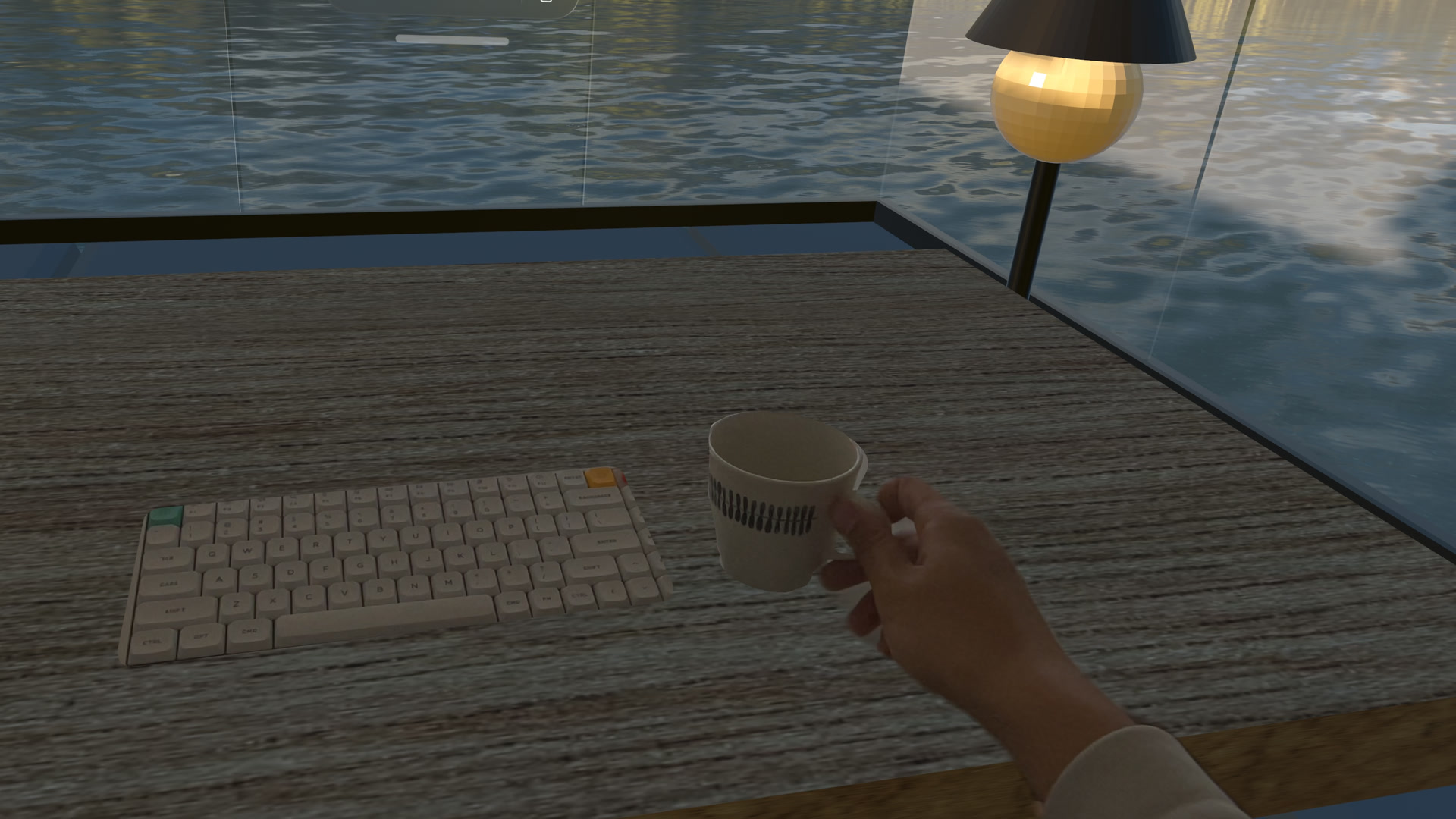
What Real Objects does
Once Locus recognizes your object, it follows the object as you move it.
- In Desk & Surroundings, Locus opens the Virtual Space in the shape of your object, so you see the real one through passthrough. Pick it up and the opening goes with it.
- In Windows & Crown, visionOS shows no passthrough, so Locus draws your object’s 3D model where the real one is.
What you need
- An iPhone or iPad with LiDAR (a Pro model) and Apple’s free Reality Composer app, which scans objects with Object Capture. LiDAR gives the scan its real size.
- A Mac with Apple silicon and Xcode, which is free on the Mac App Store and includes Create ML. A reference object trained with Xcode 27 needs visionOS 27 on Apple Vision Pro.
- iCloud Drive turned on for your iPhone, Mac, and Apple Vision Pro, to move files between them.
- Time. About 15 minutes to scan, then roughly 5½ hours of training on an M4 Pro Mac mini. A few minutes to import.
1 · Scan
Scan the object with your iPhone
- Choose the object you will actually use. It must be rigid and keep its shape. A visible pattern or print helps a lot.
- Put it on a plain, non-shiny surface in even light. Avoid strong reflections, direct sun, and anything moving in the background.
- Open Reality Composer, start an Object Capture scan, and follow its guide around the object. Circle it slowly at a low, a middle, and a high height. If the app offers to flip the object, capture the bottom too.
- Let the app build the model, then check its size. Measure the real object’s height and width with a ruler and compare them with the model, for example in Quick Look on your Mac. If they differ by more than a few millimeters, scan again. A model at the wrong size tracks poorly.
- Save the USDZ model to iCloud Drive, for example in a folder named Locus, so your Mac can open it.
The scan does not have to be perfect. The mug in the video above had visible lumps and an uneven rim, and it still tracked. In Windows & Crown you see that model, so a cleaner scan looks better there. Reality Composer can also export the scan’s photos, so you can build a more detailed model from them on your Mac. See Apple’s guide to capturing photos for Object Capture.
2 · Train
Train a reference object in Create ML
- On your Mac, open Xcode → Open Developer Tool → Create ML.
- Create a new project with the Object Tracking template.
- Add your USDZ model as the source. Check that the dimensions Create ML shows match your object.
- Choose the viewing angles. Choose Upright for a mug that stays upright on your desk. If you often tilt the object, try All Angles; training takes longer, and we have not tested whether it keeps tilted objects tracked.
- Start training and leave the Mac plugged in and awake. Standard training took about 5½ hours on an M4 Pro Mac mini. If Create ML offers an extended mode, it tracks best but takes several times longer and needs at least 43 GB free on your Mac’s startup disk.
- When training finishes, export the .referenceobject file and save it to the same iCloud Drive folder.
Prefer the command line? The same steps are scriptable with our free Mac tools — check a model’s real size, correct its scale, rebuild a detailed model from your iPhone photos, and run Create ML training unattended with resume. Find them in the Real Objects tools on GitHub.
3 · Import
Import it on Apple Vision Pro
- In Locus, open Settings → Workspace and turn on Real Objects under Experimental. Real Objects then appears in the Settings sidebar.
- Open Real Objects and choose Import a Real Object.
- Choose File…, then open iCloud Drive and pick your .referenceobject file. If the file hasn’t downloaded to Apple Vision Pro yet, wait for iCloud to finish.
- Name it and choose Add to Real Objects. It becomes active right away. Up to 10 Real Objects can be active.
- Make sure Reveal Real Objects is on. The first time, allow World Sensing when visionOS asks; Locus needs it to find objects. You can also turn it on later in Setup & Permissions.
- Enter a Virtual Space and put the object on your desk where you can see it. Give Locus a moment to find it.
To remove an object, choose the ⋯ button on its card, then Remove from Locus. Locus deletes its own copy; the file in iCloud Drive isn’t touched.
If Locus doesn’t find your object
- Look at the object from where you normally sit, within arm’s reach, in good light.
- Keep it the way you trained it. An object trained Upright isn’t followed when you tilt it.
- Check the model’s size against the real object, and scan again if it’s off.
- Use the same physical object you scanned. A similar mug from the same shop may not be recognized.
Tell us what worked for you, and what didn’t, on r/EnterLocus.