Basics · 5 minutes
Find a high-resolution View online.
Only a complete panorama that is at least 4,096 × 2,048 and exactly 2:1 can be used directly from Locus Browser. When an image qualifies, you can apply a session-only preview or save it to your View library without leaving your workspace.
4K minimum · Exact 2:1 · JPEG, PNG, or HEICTry it first
Open a ready-to-use 4K View.
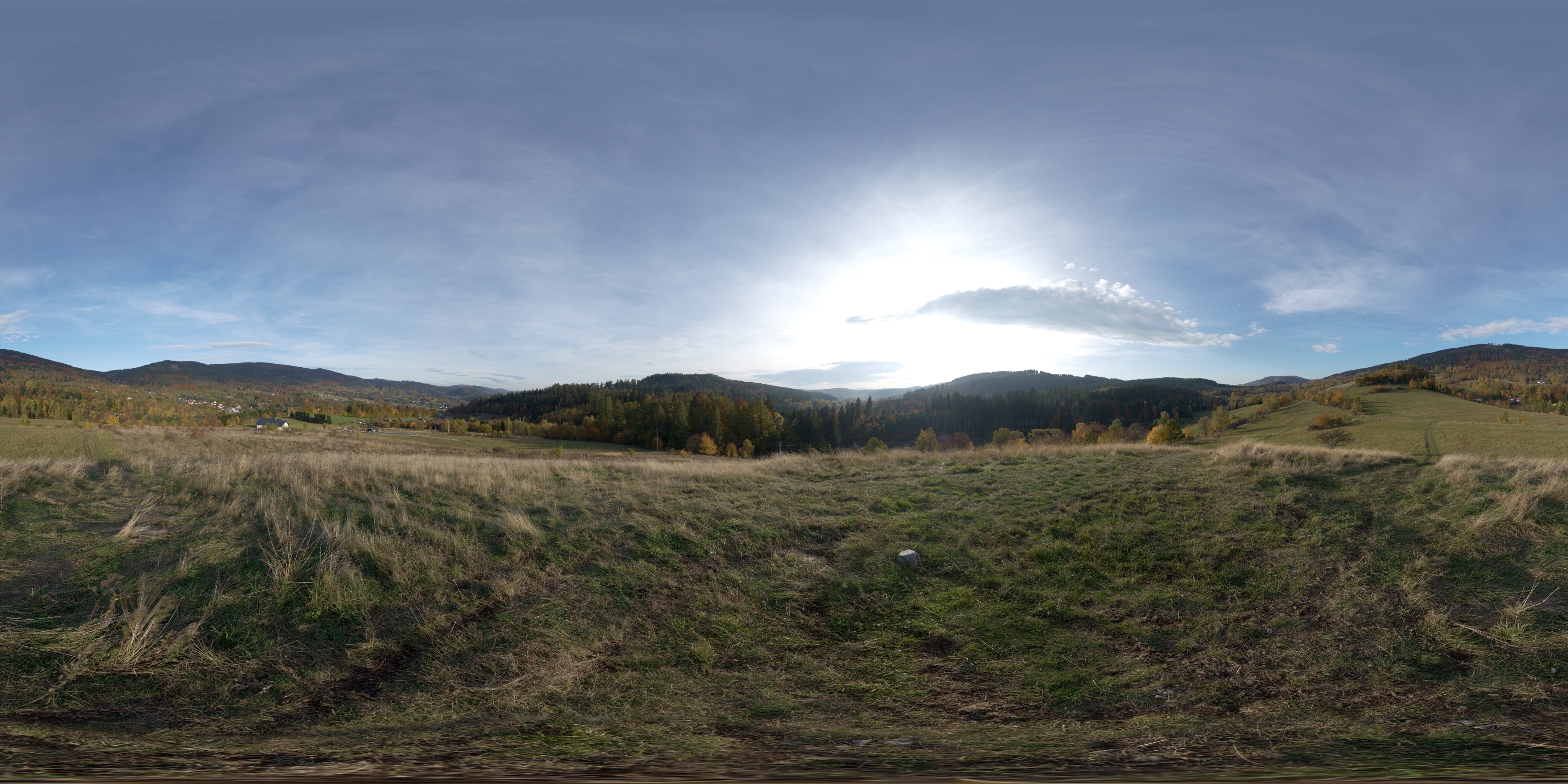
Open this example in Locus Browser. When the image appears by itself, Locus will offer Apply Preview and Save as View….
Autumn Hill View from Poly Haven, available under CC0. This copy is 4,096 × 2,048.
Experimental
Browse Locus Skies.
A small gallery of free AI-generated 360° skies, 8K and larger, all ready to become Views. Open a sky, then choose Open full image so the image fills its own Browser tab and Locus can offer Apply Preview and Save as View….
Locus Skies is an experimental playground. Skies are added, replaced, and removed without notice; anything you save stays in your library. Published by EnterLocus under CC BY 4.0.
Know what to look for
A compatible View is a complete 360° equirectangular panorama. It looks unusually wide and contains the whole sphere in one flat image.
| Check | What Locus needs |
|---|---|
| Shape | Exactly twice as wide as it is tall: a 2:1 equirectangular image. |
| Minimum size | 4,096 × 2,048 pixels. Larger images generally look clearer in Apple Vision Pro; 8K or 12K is preferable when available. |
| File type | An SDR JPEG, PNG, or HEIC image. HDR, EXR, cube maps, video, and interactive 360° viewers are not View images. |
| Web source | An image that fills its own Browser tab: a public image URL, or an image download the page hands to Locus (including same-site blob: and data: downloads, which can use the page's signed-in session). Images shown inside a page, thumbnails, canvas-only previews, and cross-site-protected files do not qualify even when a full-resolution download exists. One image up to 200 MB. |
| Rights | A license or permission that allows your intended use. Being downloadable does not by itself grant permission. |
.hdr or .exr file.Download the right file from Poly Haven
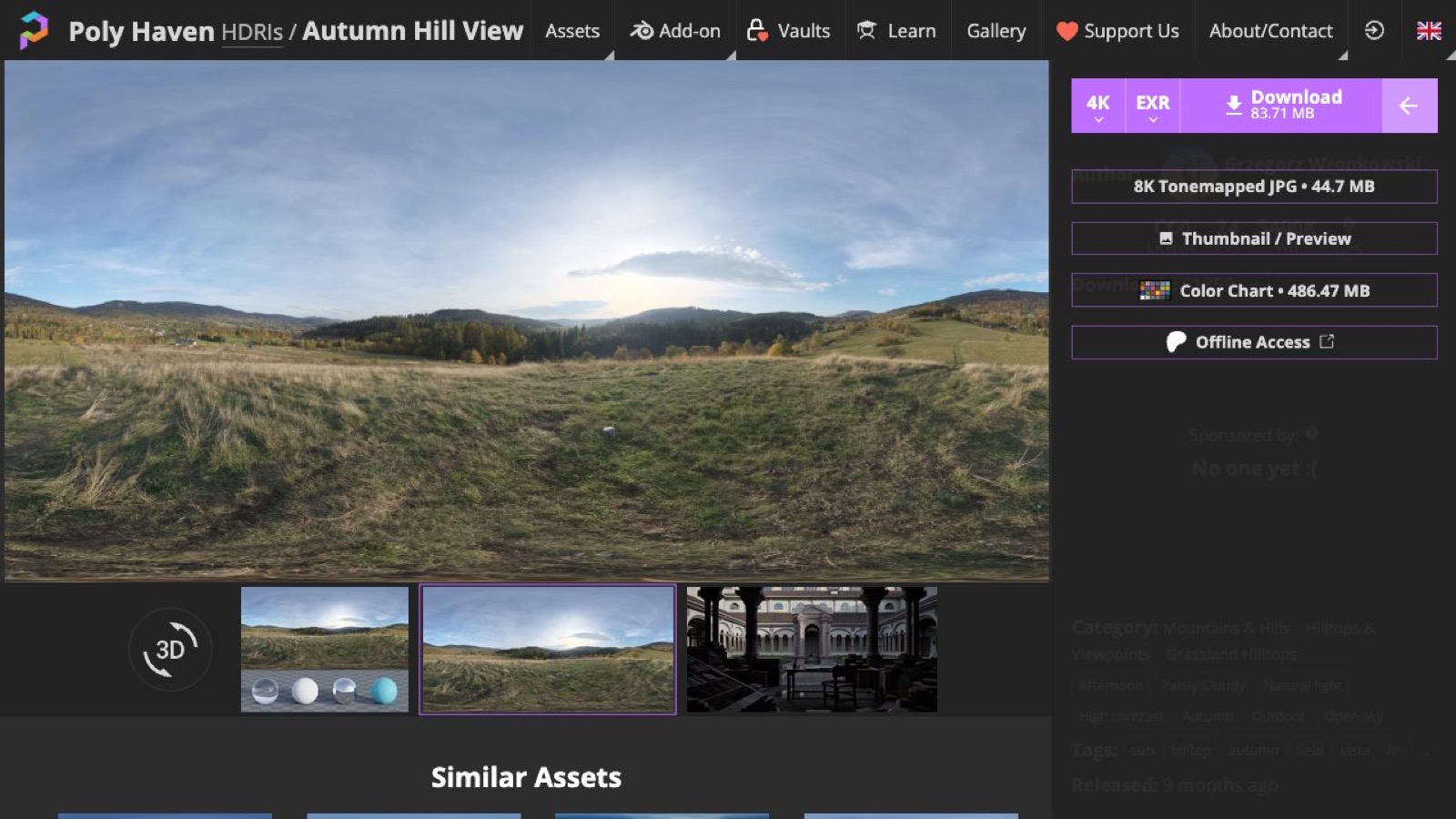
Poly Haven's main Download button defaults to HDR or EXR. Those files do not work as Views in the current version of Locus.
- Open an HDRI asset page. Confirm that the preview is a complete 2:1 panorama.
- Open the small menu at the far right of the Download controls. It appears beside the main Download button.
- Choose 8K Tonemapped JPG. Do not choose HDR or EXR. The JPG is an SDR image that Locus can inspect, preview, and save.
Find a full-resolution image on other sites
Sites such as Wikimedia Commons and Poly Haven can help you find equirectangular panoramas. Check the individual file's license, dimensions, and format before using it.
Many download pages embed only a small thumbnail or an interactive viewer. Locus never offers images shown inside a page, and a preview below 4K or a canvas viewer would not qualify anyway. Look for Original file, Full resolution, or a direct JPEG, PNG, or HEIC link. The full image should open by itself in the Browser tab.
Use the image in Locus
- Open the page in Locus Browser. Browse normally until you reach the panorama or its download page.
- Open the full-resolution image on its own. Open the page's Original file or direct image link so the image fills its own Browser tab. Locus does not mark images inside a page; only an image that is the whole tab can become a View.
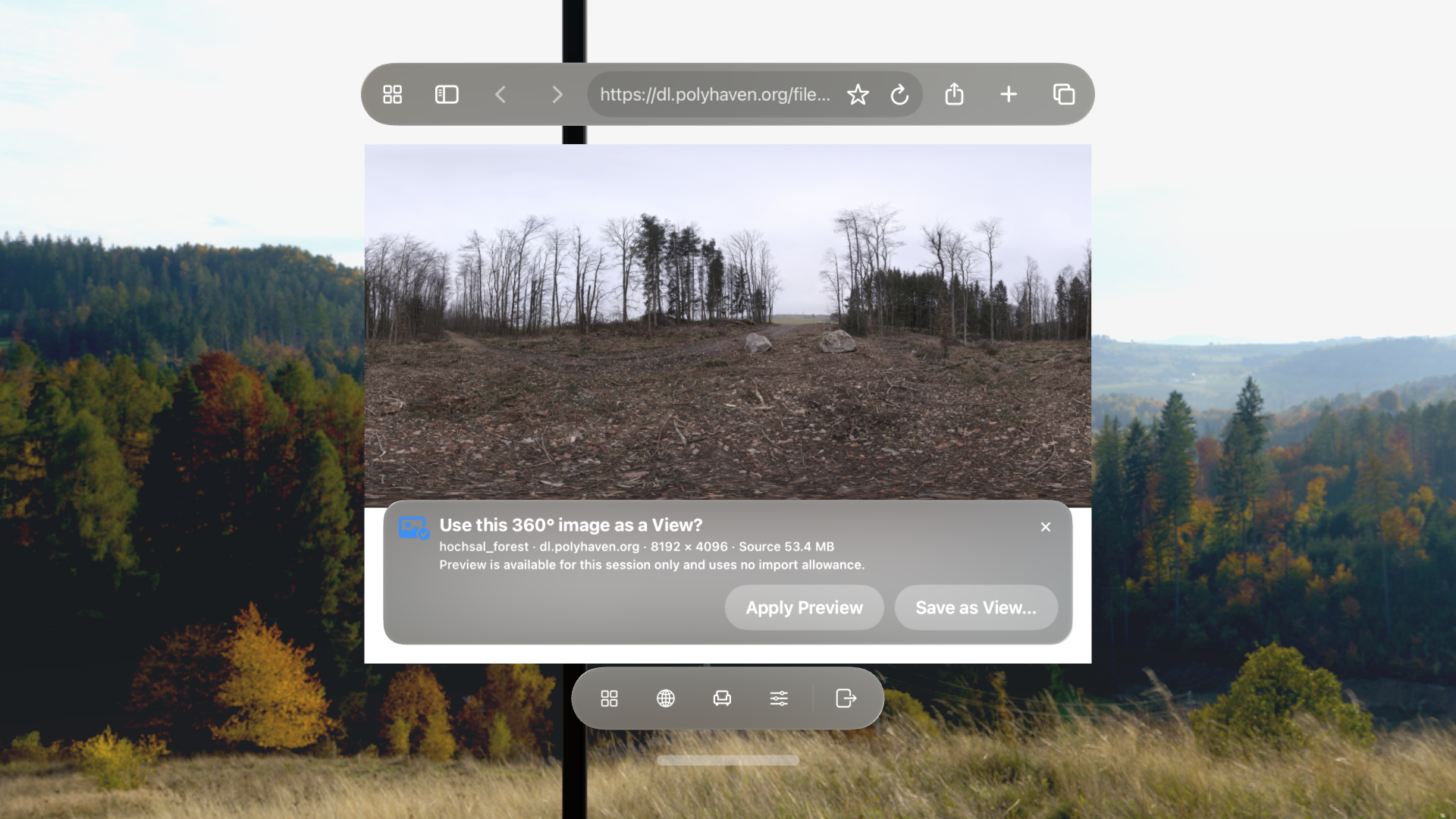
- Wait for Locus to download it. Locus downloads the image once, up to 200 MB, and keeps the original file. A qualifying image then opens the prompt Use this 360° image as a View? with its filename, host, dimensions, and format.
- Choose Apply Preview or Save as View. Both reuse the original file already downloaded by that tab, without fetching it again. When you save a View, Locus processes the image on your device into a JPEG View, with a thumbnail and Room-lighting image. Apply Preview is available once you are inside a Place; outside one it stays disabled and Locus asks you to enter a place first.
Preview or save?
If another View is already using your available import, Locus offers Get More Imports so you can open Plans & Purchases instead of reaching a dead end.
After saving, use Edit View in Locus to adjust its starting direction, brightness, contrast, color, Room lighting, and optional sunlight.
If the View prompt does not appear
- Open the original image rather than the download page's thumbnail. Images shown inside a page never trigger the prompt; the image must be the whole tab.
- Confirm that the displayed image is at least 4,096 × 2,048 and exactly 2:1.
- Choose a JPEG, PNG, or HEIC instead of HDR, EXR, ZIP, video, or a cube map.
- Image downloads the page hands to Locus, including same-site
blob:anddata:downloads, open in their own preview tab and can use the page's current signed-in session. Canvas-only viewers, non-image downloads, and cross-site-protected files still do not. - An image larger than 200 MB opens in the Browser but cannot be applied or saved; look for a smaller export.
- If a download button hands the file to another app, return and look for an Original file or full-resolution image link that opens in the current tab.
See the FAQ for short answers about resolution, import allowances, and download behavior.